Download and install Ollama. There are multiple LLMs available for Ollama. In this case, we will be using Codellama, which can use text prompts to generate and discuss code. Once Ollama is installed download the Codellama model
ollama pull codellamaRecheck if the model is available locally
ollama listRun Codellama
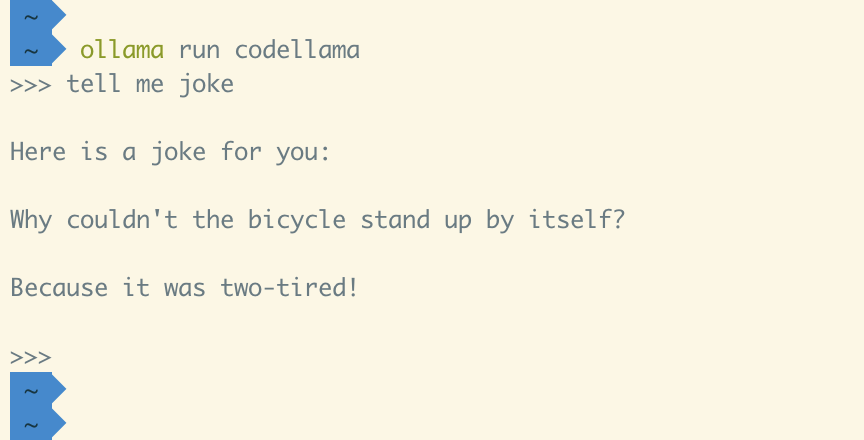
ollama run codellamaTest the model
ModelFile
A model file is the blueprint to create and share models with Ollama.
FROM codellama

# sets the temperature to 1 [higher is more creative, lower is more coherent]
PARAMETER temperature 1

# sets the context window size to 1500, this controls how many tokens the LLM can use as context to generate the next token
PARAMETER num_ctx 1500

# sets a custom system message to specify the behavior of the chat assistant
SYSTEM You are expert Code Assistant
Activate the new configuration
ollama create codegpt-codellama -f Modfile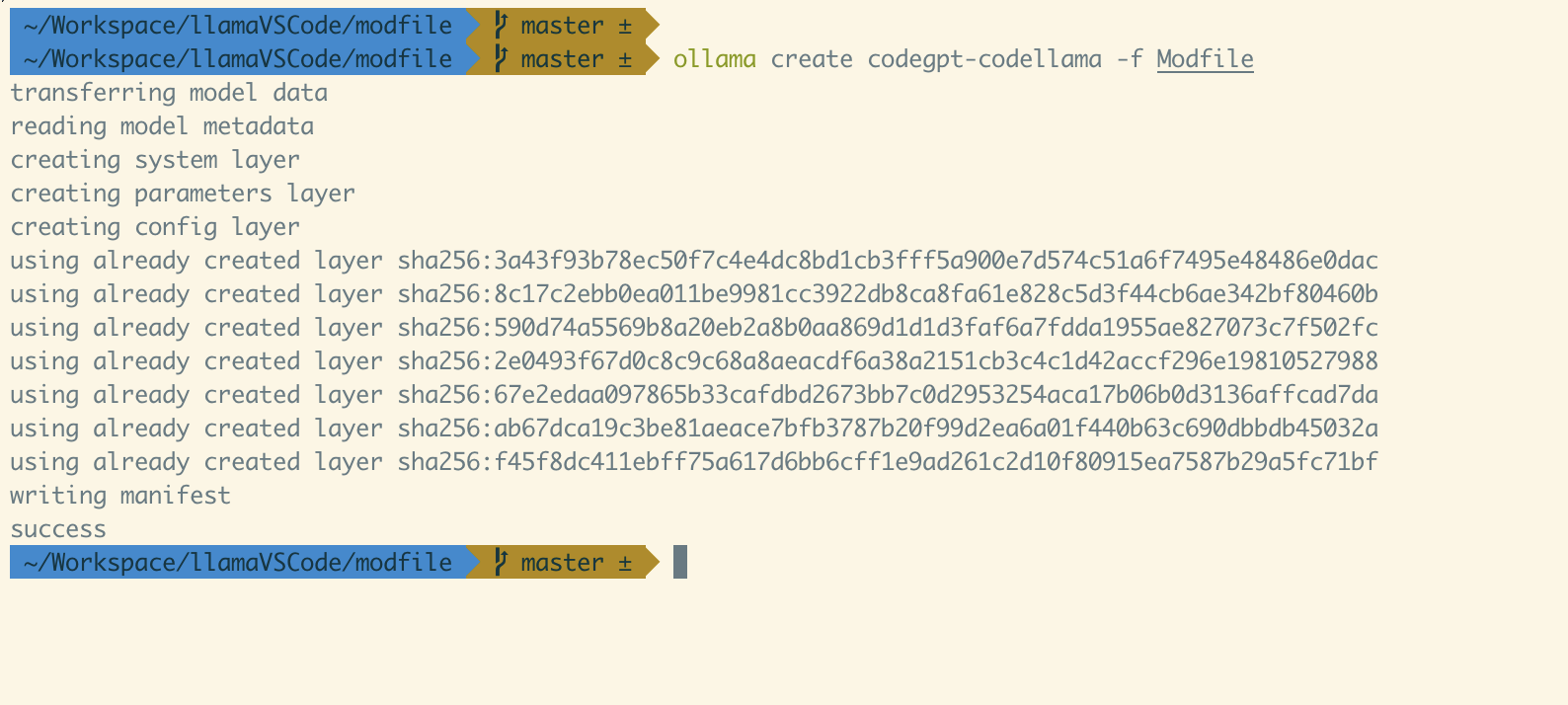
Check if the new configuration is listed
ollama list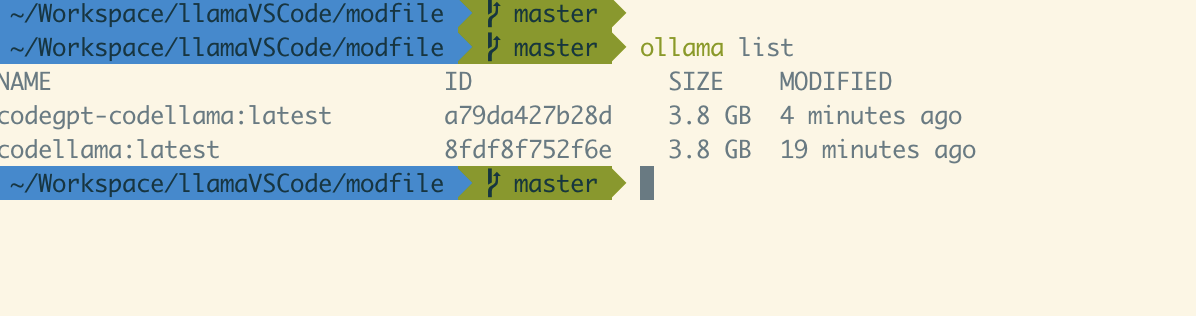
Test the new configuration
ollama run codegpt-codellama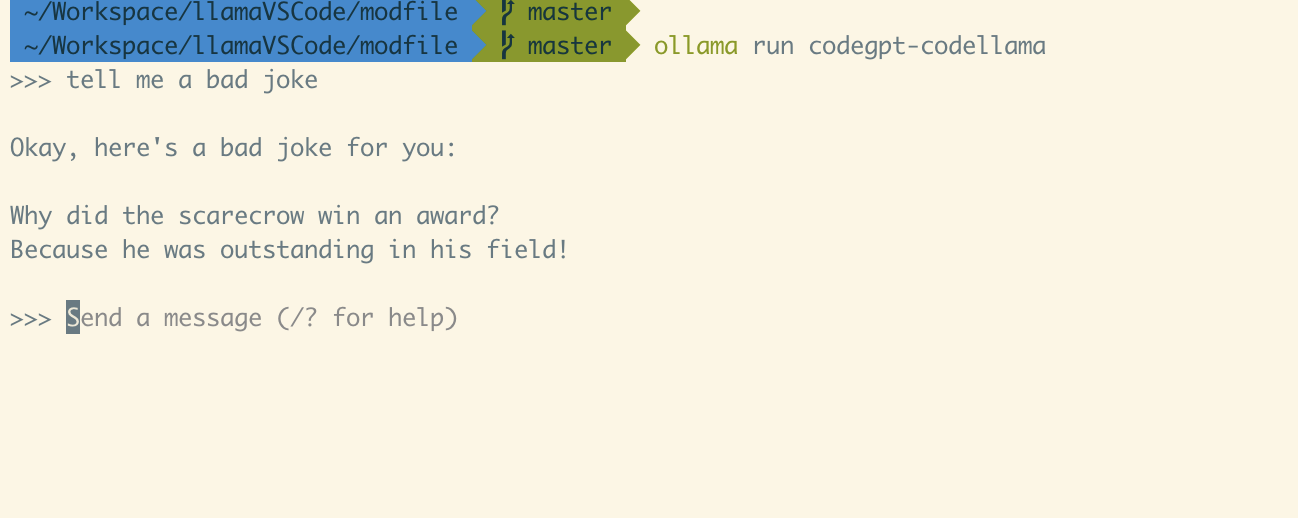
CodeGPT Extension
Install the codeGPT extension in VSCode.
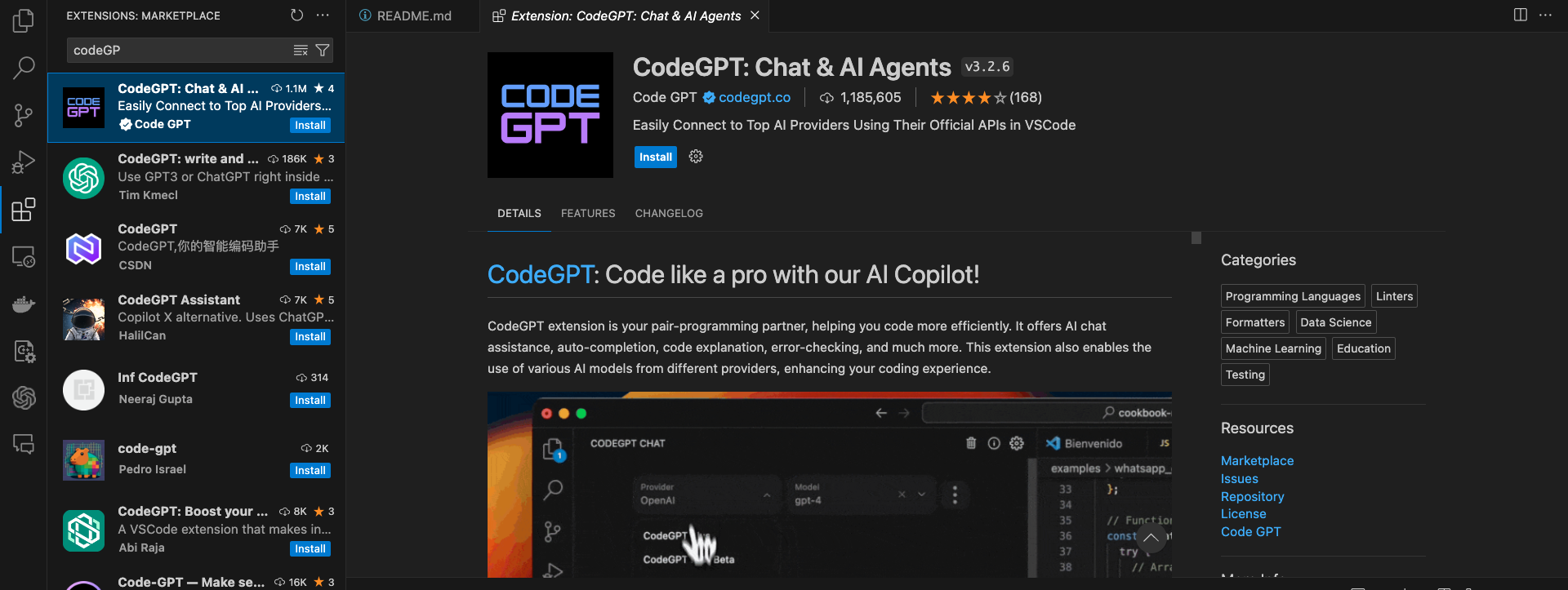
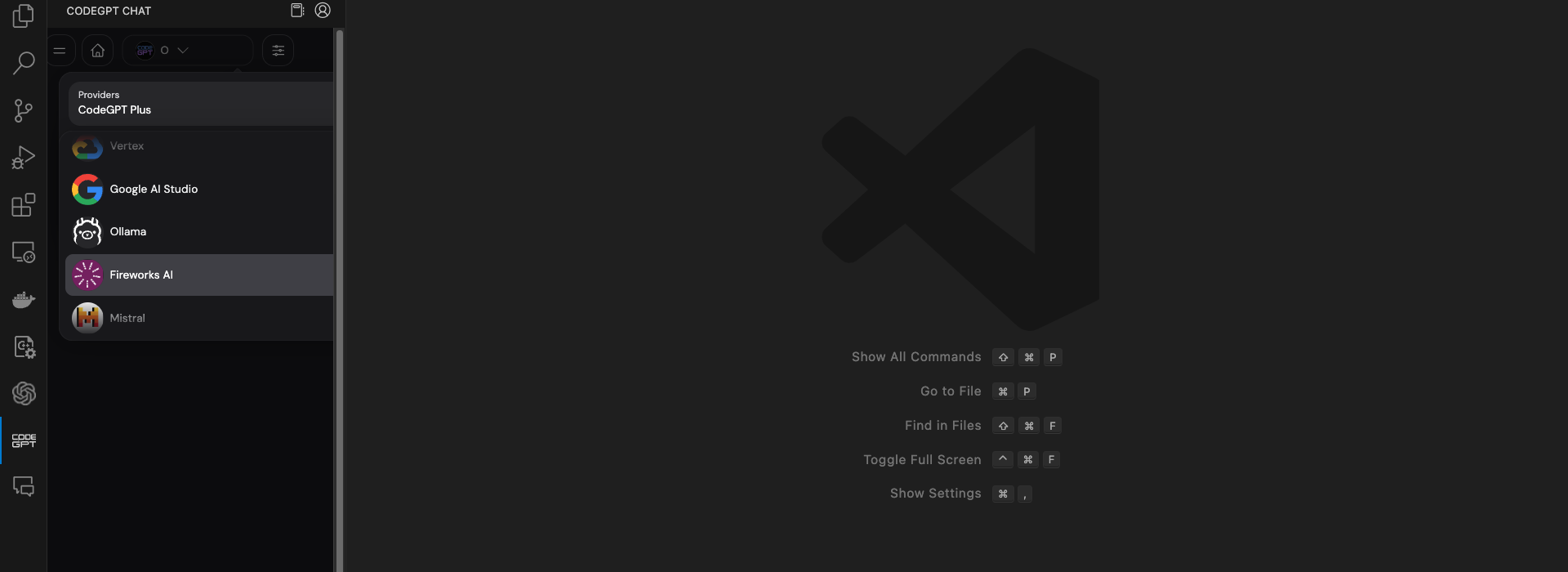
Then select Ollama from the dropdown menu
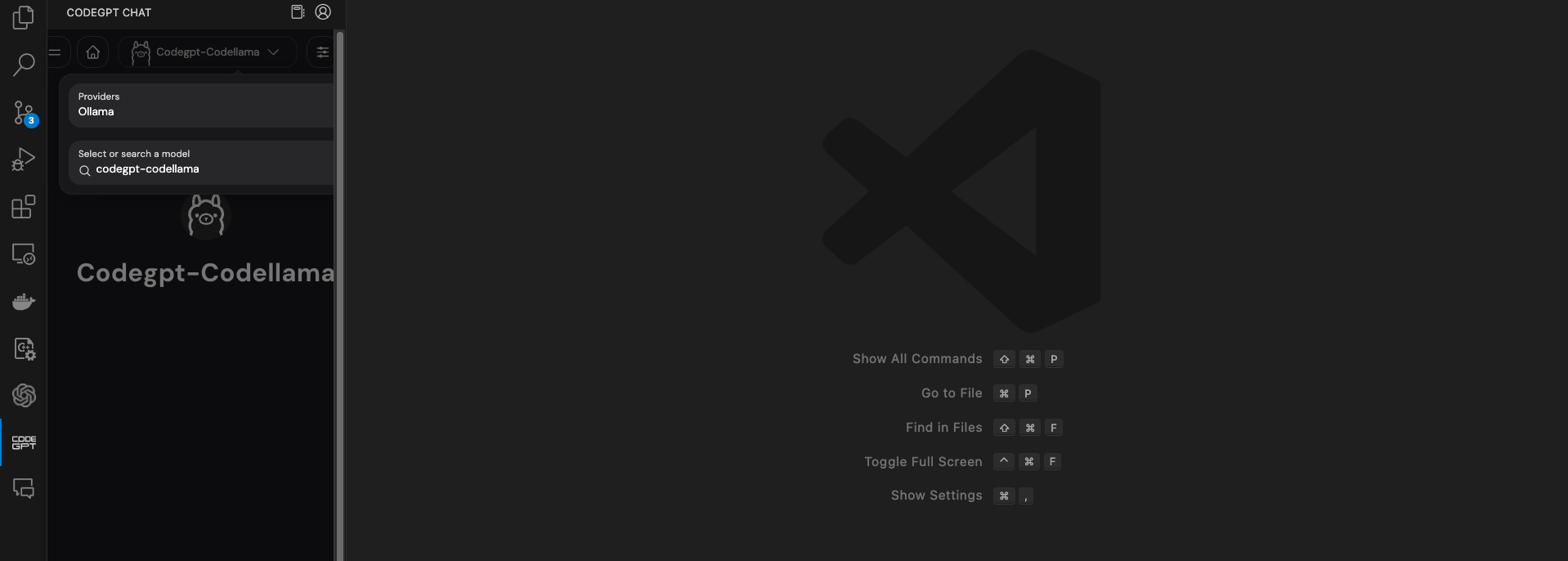
and select the configuration we created
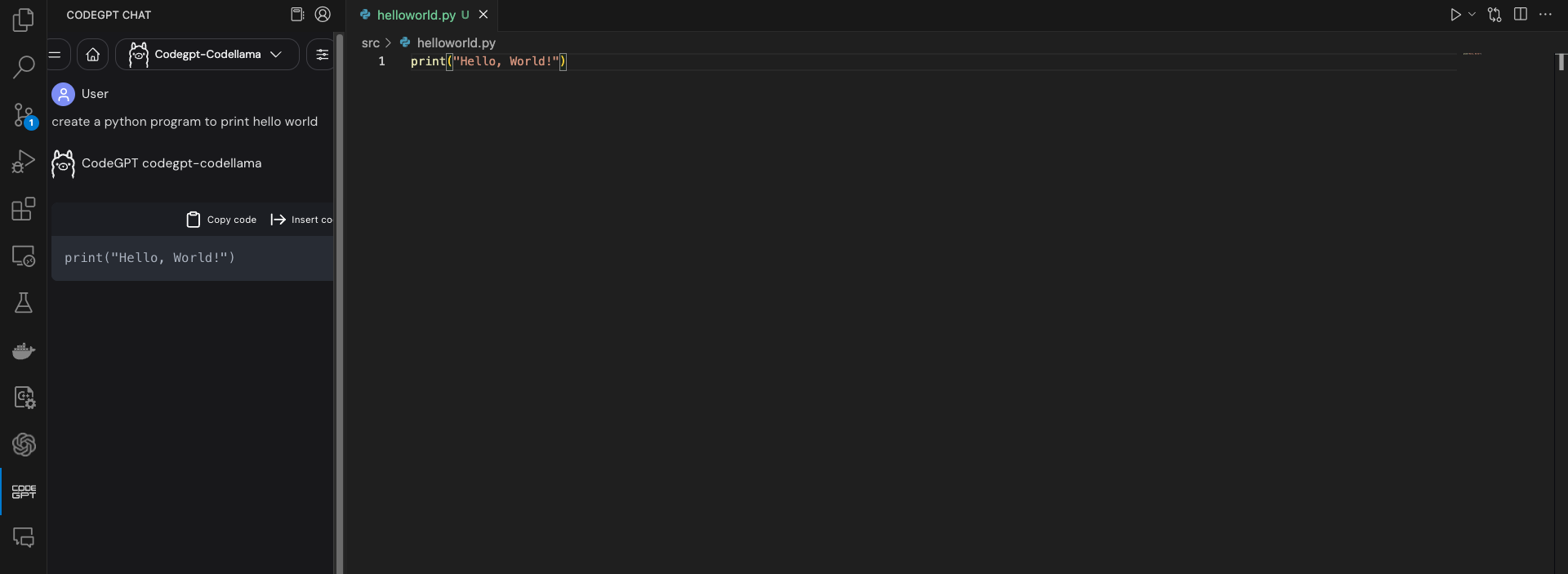
Generate Code